[dropcap]O[/dropcap]nline security and data protection is critical in this modern world and has become a key priority for digital businesses. Two Factor Authentication is an additional layer of security to overcome the vulnerabilities of a standard password and is essential to keeping your company and its data protected.
One Time Passwords are an easy and reliable form of 2FA, and are used to add a second layer of authentication. The risk of fraud is drastically reduced if the user doesn’t only have to fill in his user name and password. OTP messages are unique to every single user and every single login on any digital device.
An OTP is more secure than a static password, especially a user-created password
[tie_full_img]
[/tie_full_img]
[padding left=”5%” right=”5%”]
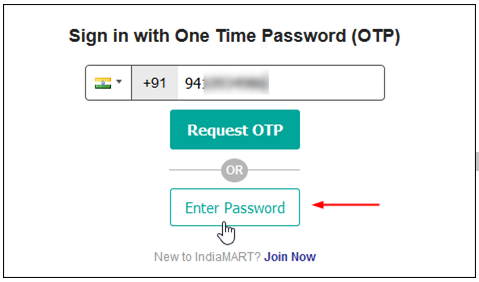
A One Time Password is a string of characters or numbers automatically generated to be used for one single login attempt. One Time Passwords can be sent to the user’s phone via SMS or Voice and is used to protect web-based services, private credentials and data.
OTP’s will minimize the risk of fraudulent login attempts and come in all shapes and sizes, but always add an extra layer of authentication. The risk of fraud is drastically reduced if the user doesn’t only have to fill in his user name and password (something he knows) but also needs something he “has” to complete the login.
A simple plugin that allow you to Secure login with One Time Password(OTP) into wordpress site
OTP is a six-digit numerical code sent in real time as SMS to your registered mobile number while performing the transaction. OTP is mandatory for authorizing the following transactions: Registration of beneficiary bank accounts of other banks. Bill payments.
OTP Verification plugin verifies Mobile Number of users by sending verification code (OTP) during registration. It removes the possibility of a user registering with fake Email Address / Mobile Number
[/padding]

Comprehensive Solutions for Two Factor Authentication
[one_third]
Authenticate New Users
Let new users verify their phone to prevent spammers and bots from access to your platform and rule out bulk account creation.
[/one_third][one_third]
Secure Account Logins
Protect your platform and accounts from data theft and let users sign in with an OTP via SMS or Voice messaging at each attempt.
[/one_third][one_third_last]
Safeguard Transactions
Add an extra layer of security by implementing an OTP to verify accounts before users proceed with a transaction.
[/one_third_last]
[padding left=”5%” right=”5%”]
One Time Passwords via SMS
With a 98% open rate within 30 seconds, SMS is known for its high reliability. By sending One Time Passwords via SMS, you are sure to reach your users wherever they are.
Let Your Users Login with One Time Passcode
Login and Signup system is the most crucial part of your website and your success, so use something which is modern and easy to use or else you can lose customers/users.
Digits let your user signup on your WordPress website simply with passcode SMS sent on their mobile phone number.No more checking emails and remembering passwords. Just SMS.
HOW TO INTEGRATE OTP LOGIN IN WORDPRESS WOOCOMMERCE
1.Install and activate plugin
Buy The plugin.Then Upload the Plugin In Plugin Settings and activate it
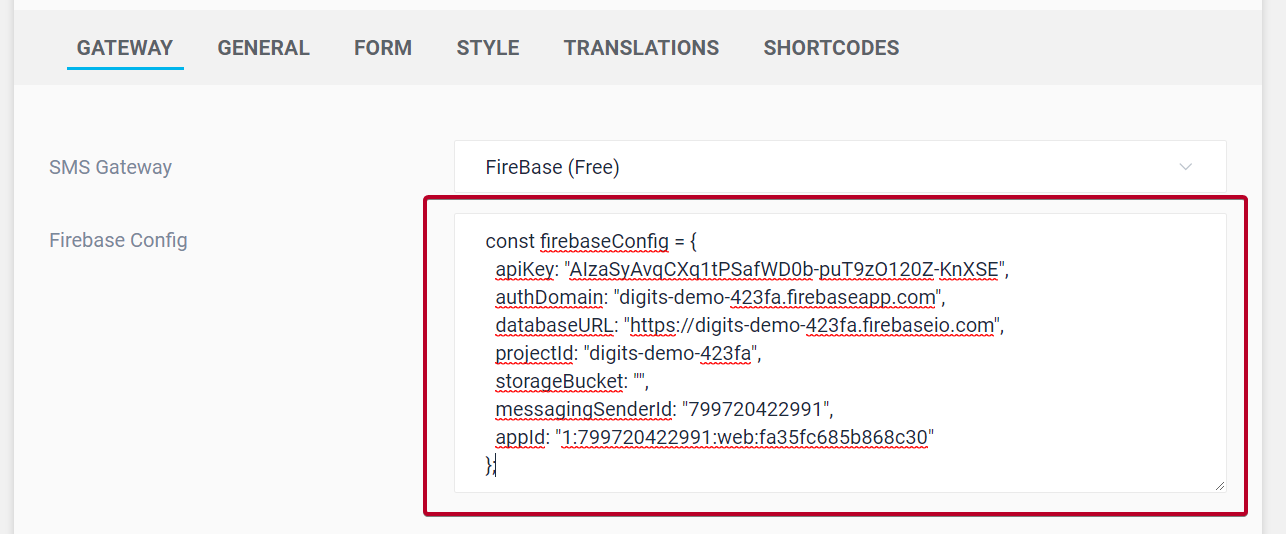
2.SETUP A GATEWAY-(FIREBASE GATEWAY RECOMMENDED)
Firebase Setup Instructions
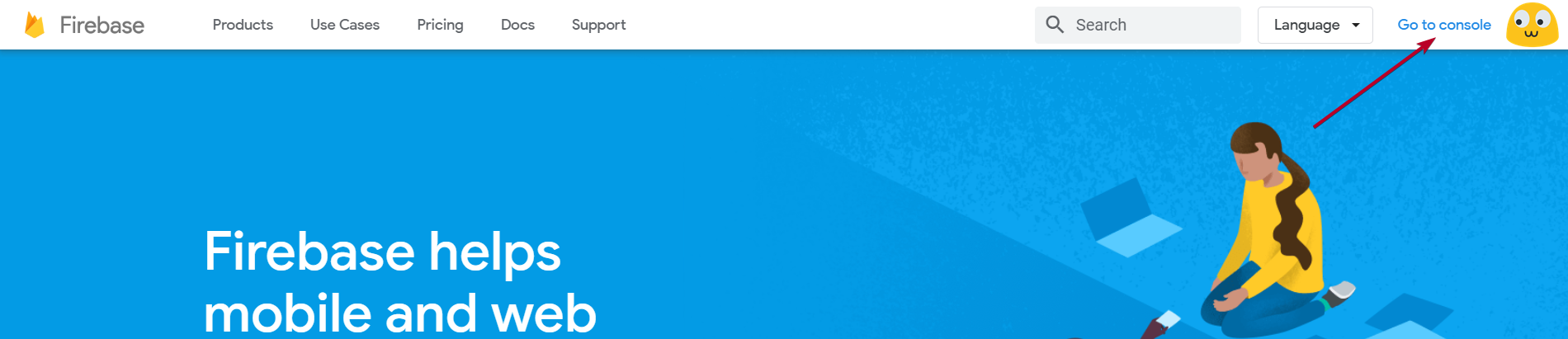
2. On the console page click on Add Project

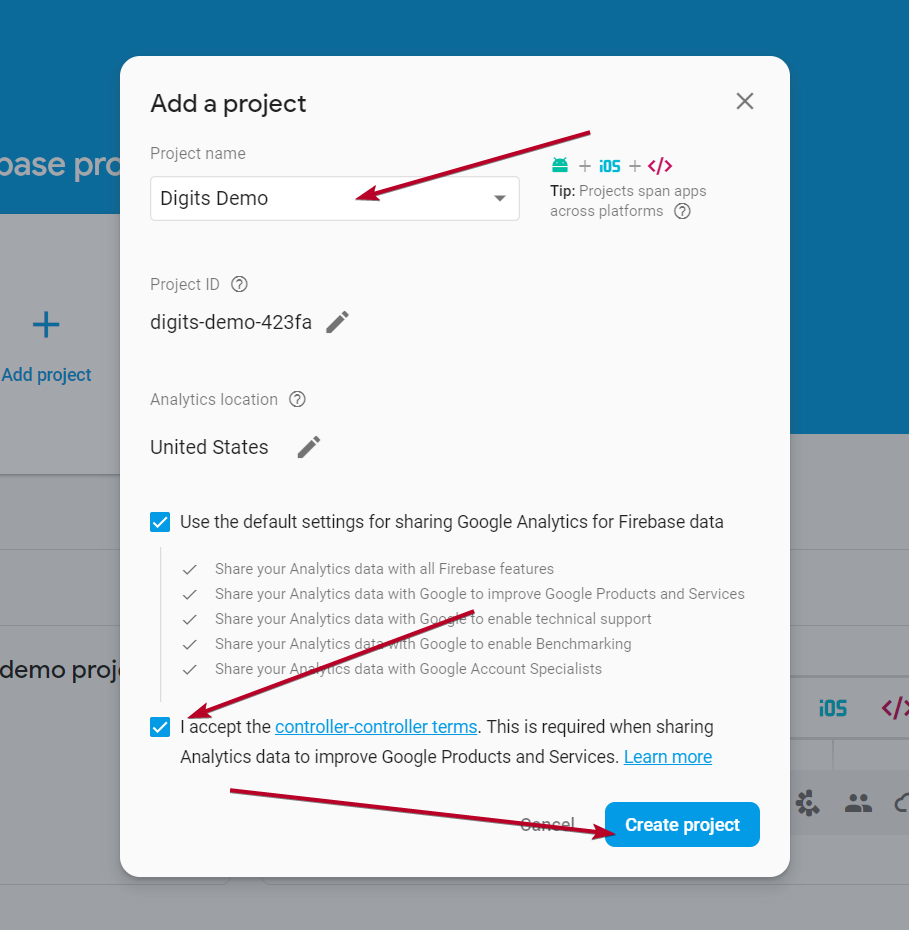
3. Create a project by filling out your Project Name (Website Name), check your country and agree to the terms and click on Create Project
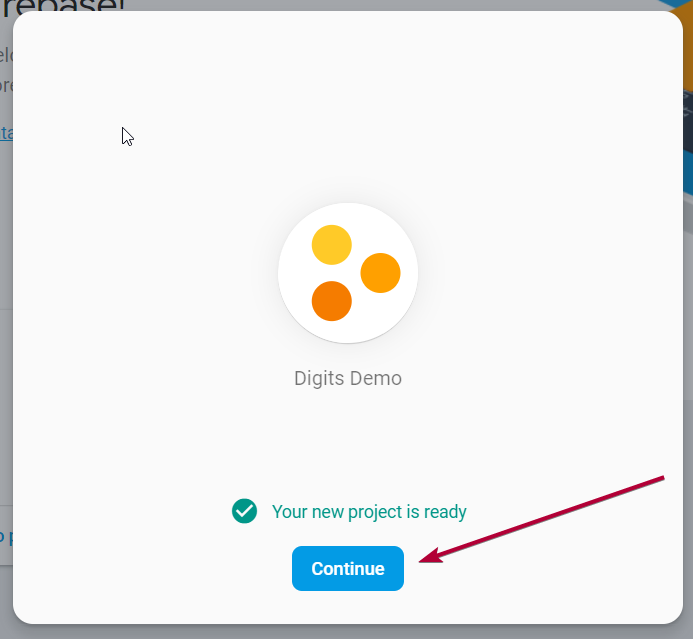
4. Once your project is ready, click on Continue
5. On next page under Project Overview select Authentication

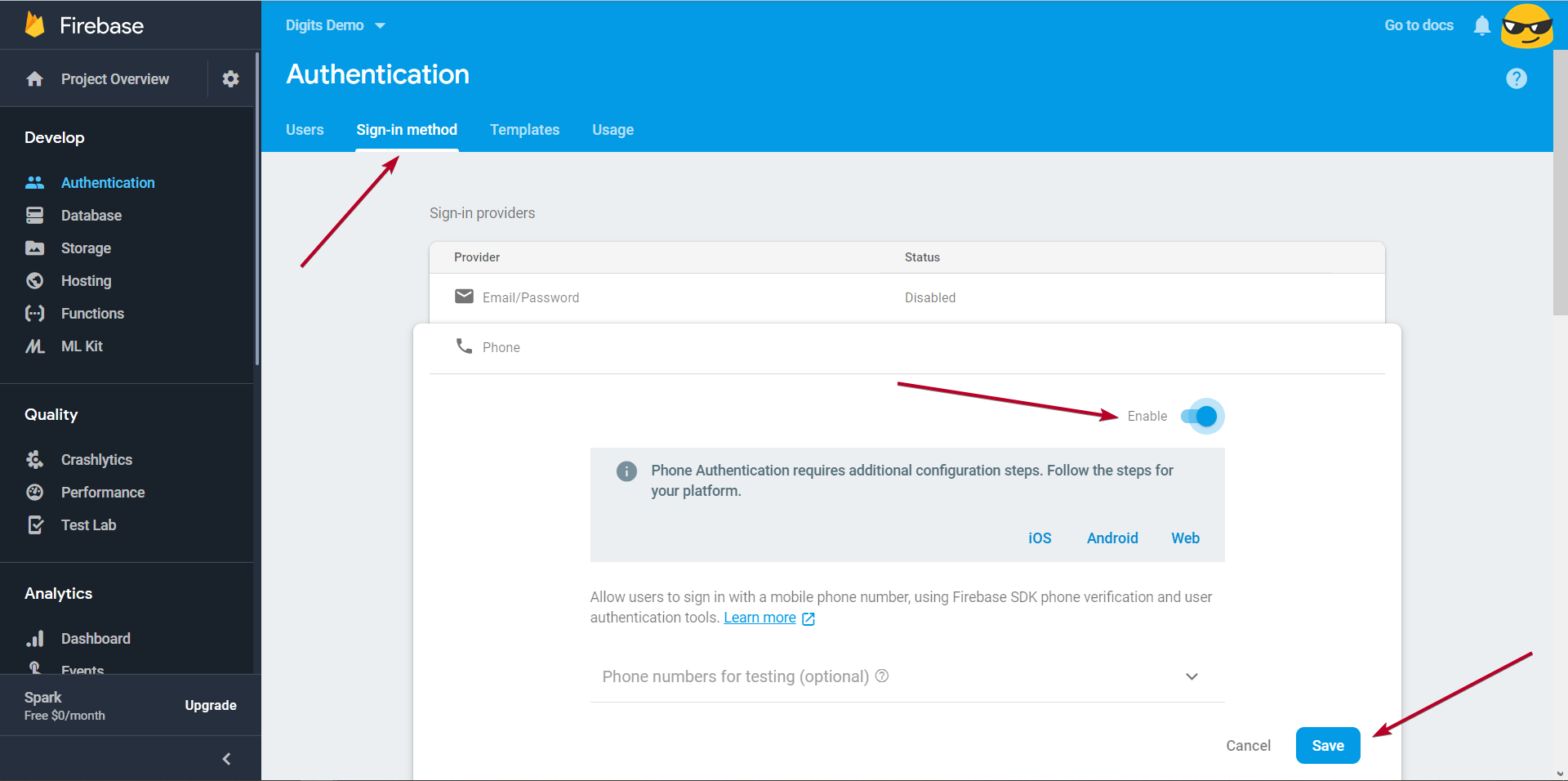
6. On the Authentication Page switch to Sign-in Method tab and click on Phone to edit that, Enable phone and then save the changes
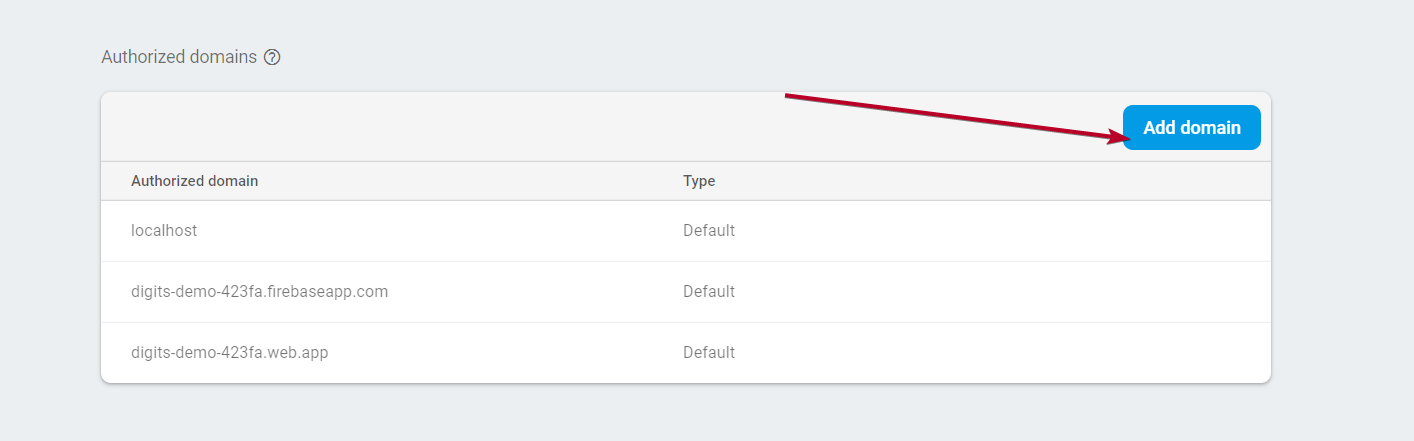
7. Scroll down on the same page to see Authorized Domain section and click on Add Domain
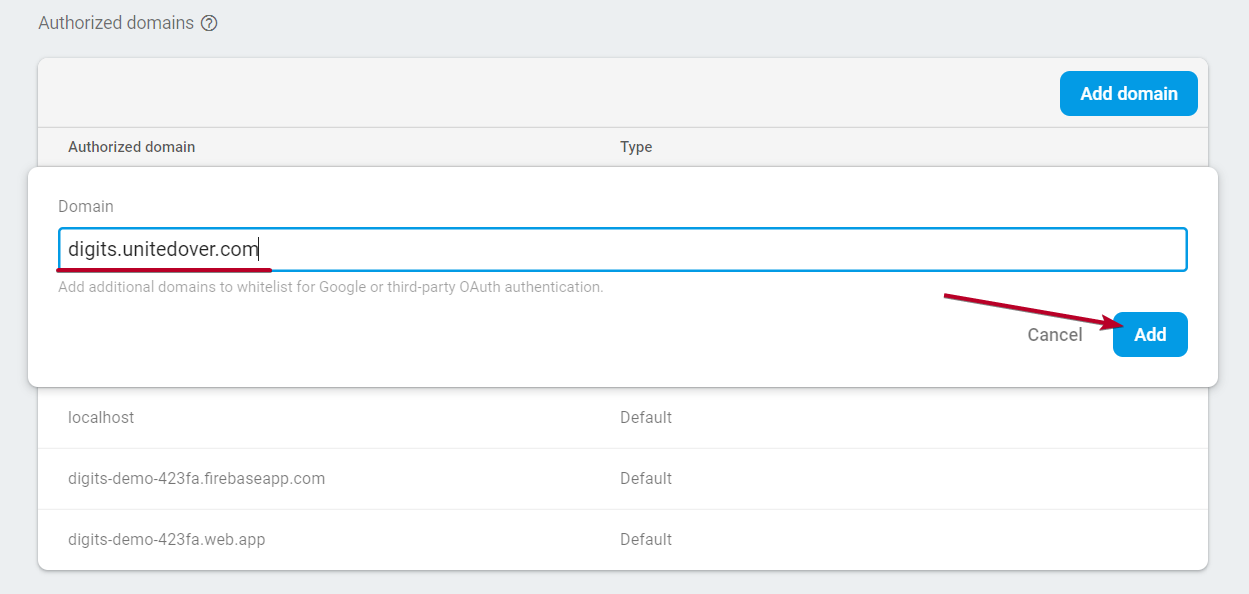
8. Fill out your domain and click on Add button. (If your website is on subdomain then use your subdomain)
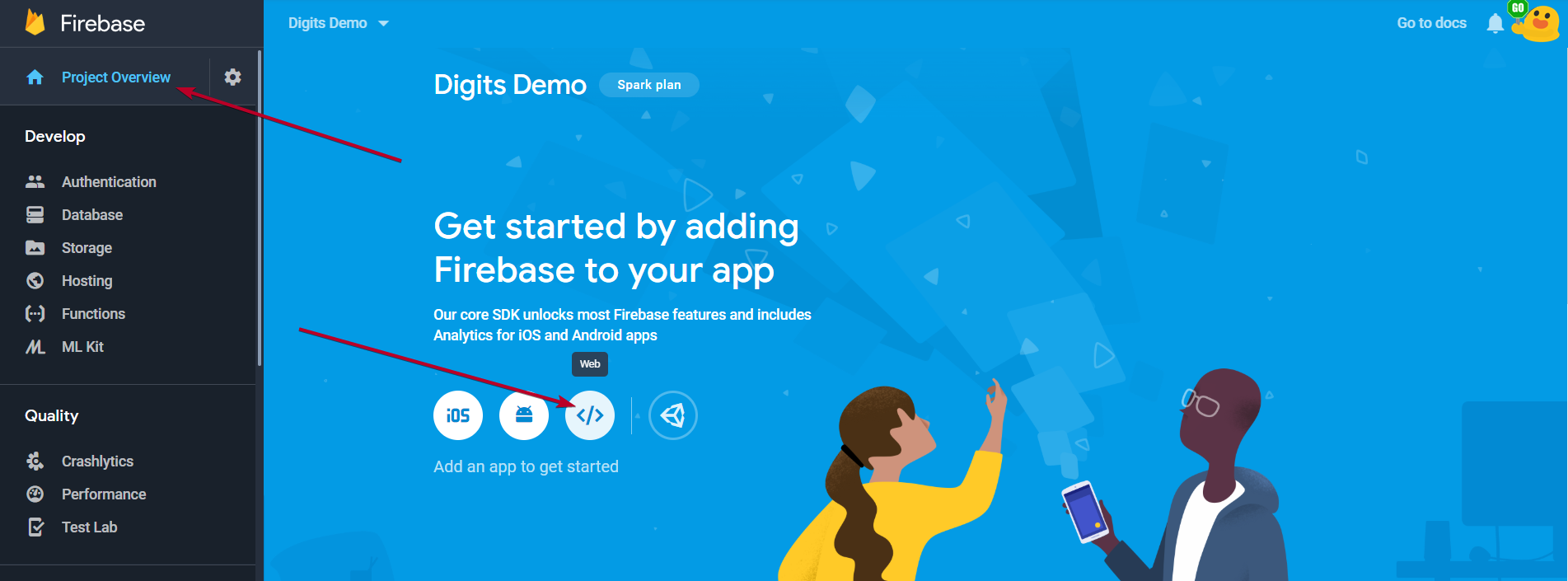
9. Once your domain is added, head back to Project Overview and click on Web icon.
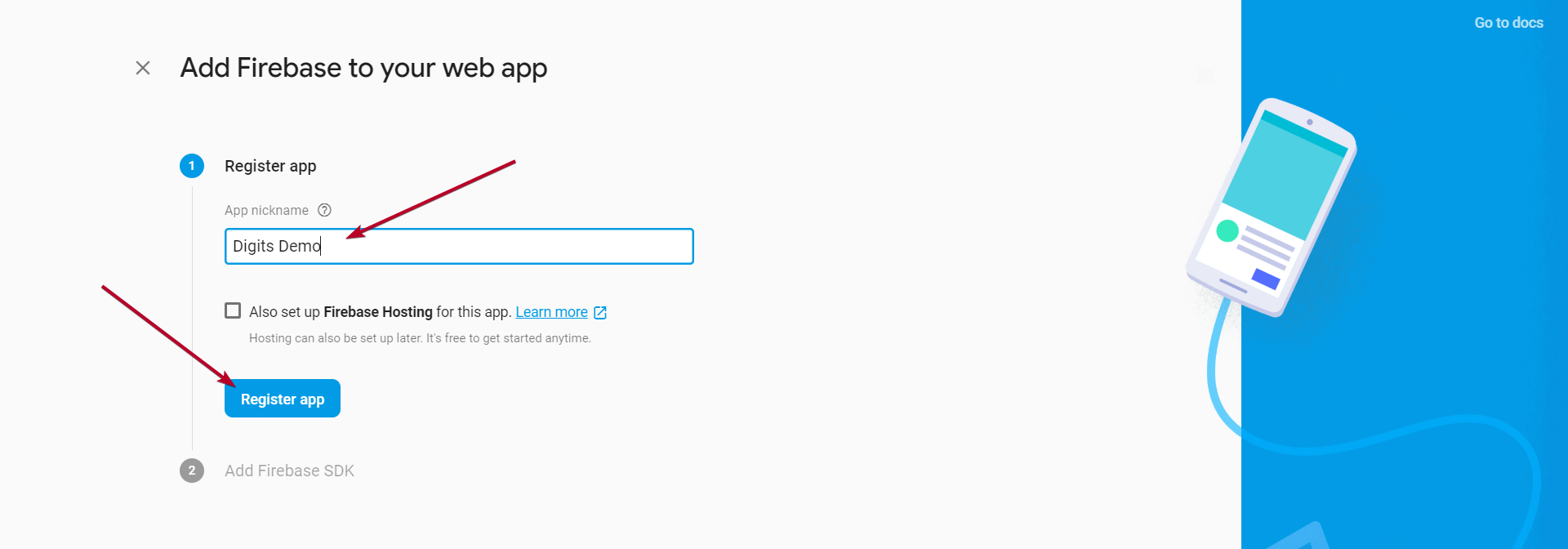
10. Put in your website name in App Nickname and click on Register App
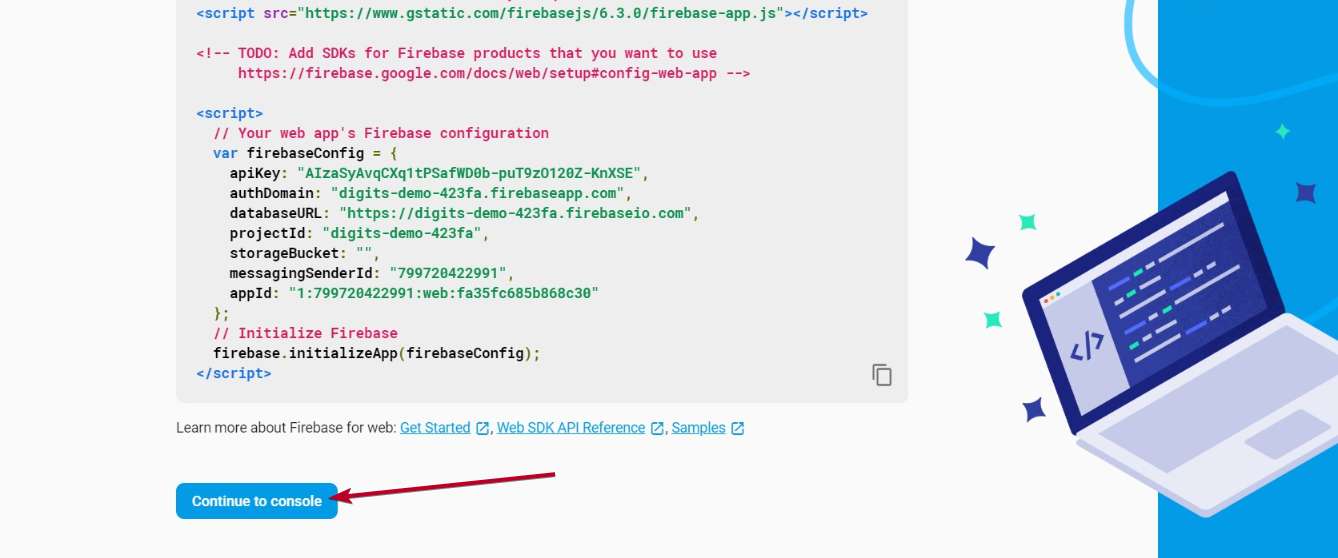
11. Once the app is registered click on Continue to Console
12. Once on console, click on your app list

13. Open app settings by clicking on the gear icon

14. Scroll down to Firebase SDK Snippet on the same page and select Config
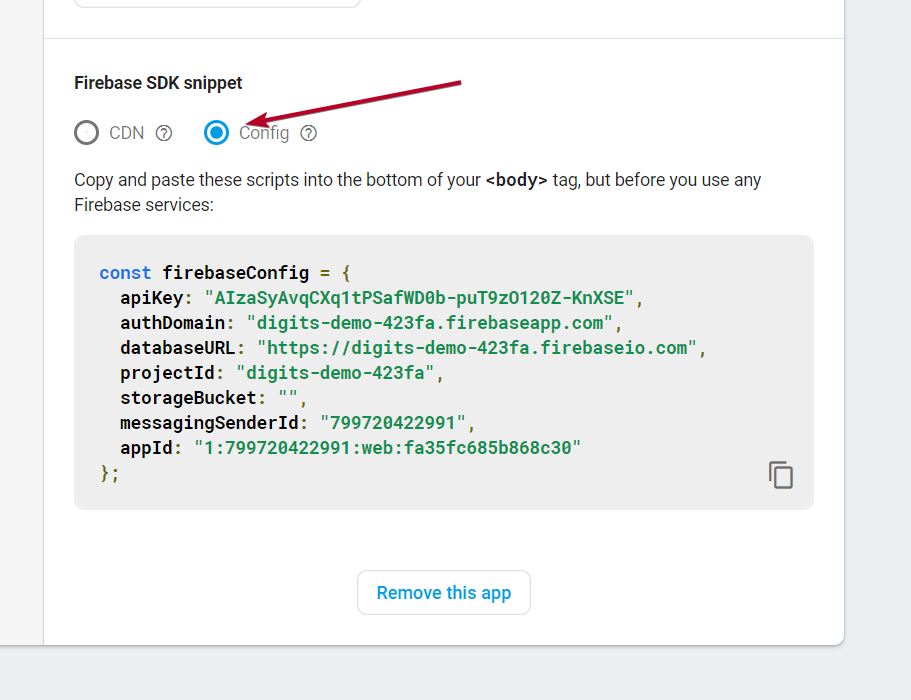
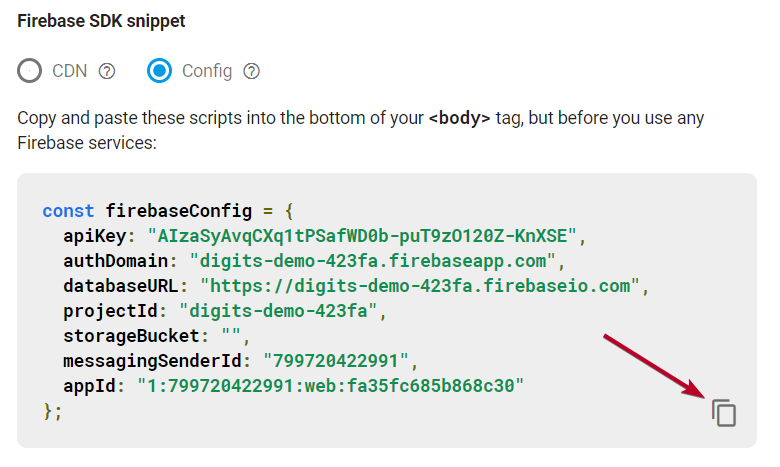
15. Copy this script detail and paste it in digits settings.
3.CUSTUMIZE THE OTHER OPTIONS ACCORDING TO YOUR CHOICE WITH THE SIMPLE PLUGIN INTERFACE